How to Check a USDT trc20 Address and Transaction on Tronscan?
You can copy a USDT TRC20 address into Tronscan to instantly view its balance and transactions. This is especially useful if someone sends you USDT TRC20 but you don’t have access to your wallet at the moment, or if you want to check the balance of a specific wallet address.
In the following steps, we’ll use a Binance wallet address as an example to show how to check its USDT TRC20 balance and transaction history.
Step 1: Go to Tronscan
Visit the official website: https://tronscan.org (Backup: https://tronscan.io)
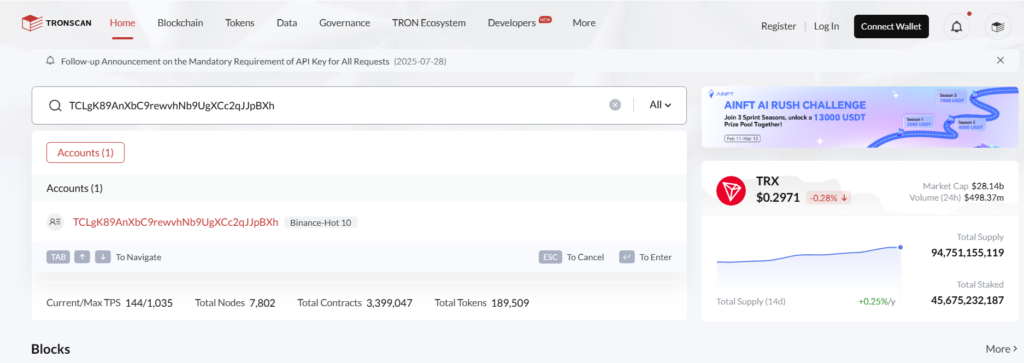
Step 2: Enter a USDT TRC20 Wallet Address
Paste the USDT TRC20 wallet address into the search bar. TRC20 USDT addresses typically start with “T”.
Example:Binance usdt trc20 wallet address:
TCLgK89AnXbC9rewvhNb9UgXCc2qJJpBXh
Step 3: View the Results
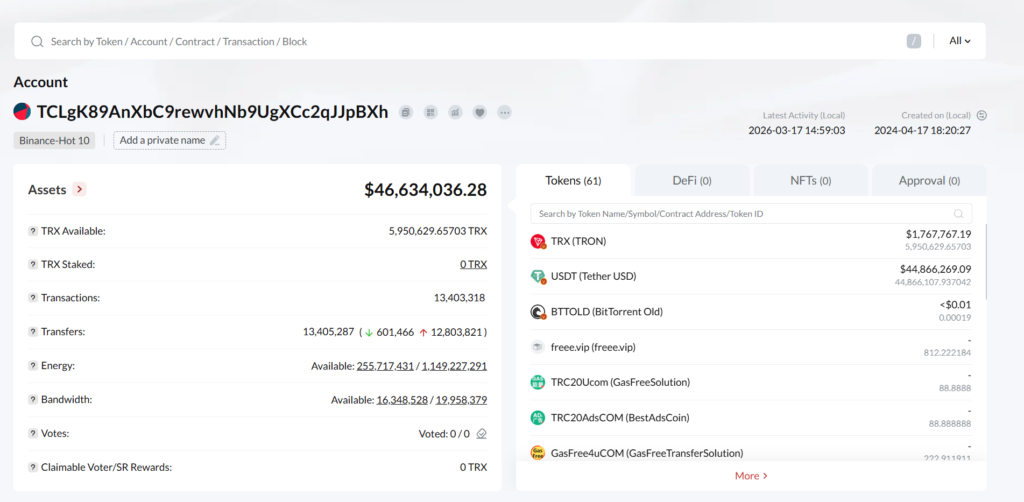
You will see the USDT TRC20 balance and transaction history for that address.
Check USDT Balance
You can check your USDT balance in the token list at the top right.
In the token list, USDT (Tether USD) represents USDT TRC20 on the TRON network.
The balance shows two numbers:
The top number is the estimated USD value of your USDT.
The bottom number is the actual amount of USDT held in the address.
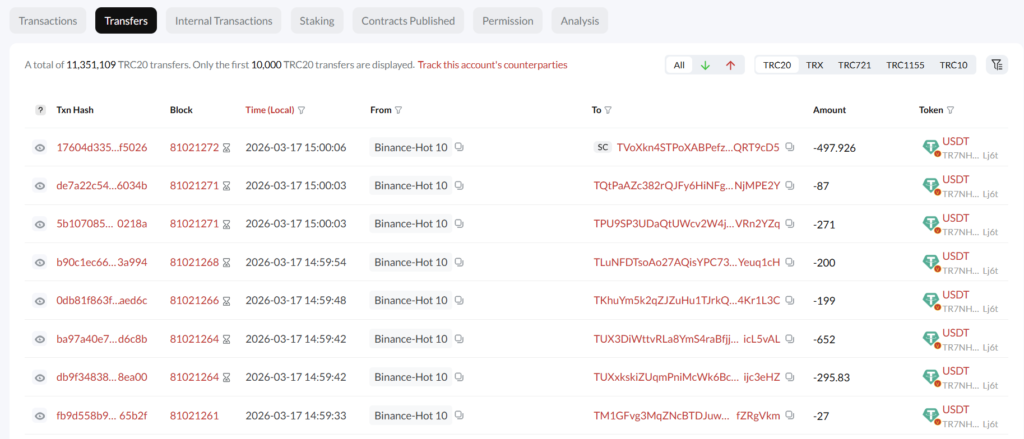
Click Transfer at the bottom, then select TRC20 on the right.
You will see the USDT TRC20 transaction history for the address. Transactions are listed in reverse chronological order, with the most recent transaction shown first. including:
Transaction Hash (TxID)
Transfer Time
Sender Address
Receiver Address
Amount
You can also filter transactions by time or by address to find specific transfers.
How to Check USDT TRC20 Transaction Status by TxID (Transaction Hash)?
If you want to know whether a USDT TRC20 transfer has been received, or find out why a transaction failed, you can check the transaction status using the Hash on TRONSCAN.
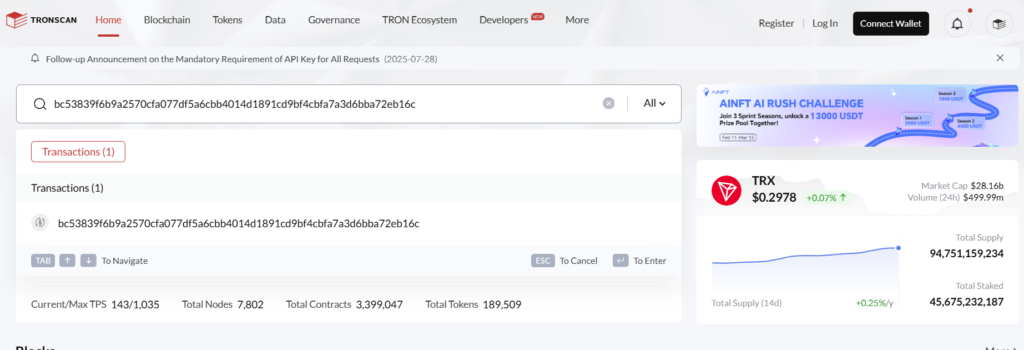
Step 1: Enter the Transaction Hash (TxID)
Paste the USDT TRC20 transaction hash (TxID) into the search bar on Tronscan.
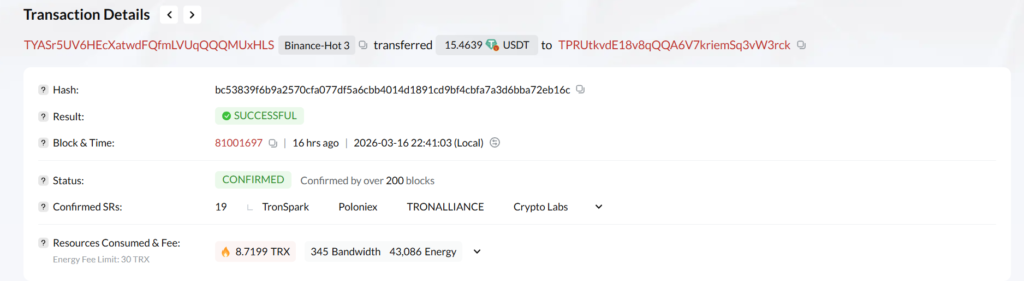
A transaction hash (TxID) is a unique 64-character string made up of letters and numbers.
Example:
bc53839f6b9a2570cfa077df5a6cbb4014d1891cd9bf4cbfa7a3d6bba72eb16c
Step 2: Check the Usdt Trc20 Transaction Status
After entering the TxID, you will see the transaction details page.
-
USDT transfer completed:
Result shows SUCCESS and Status shows CONFIRMED -
USDT transfer not completed:
Result shows FAILED and Status shows CONFIRMED
The most common reason is Out of Energy
When a transaction fails, you don’t need to worry. The USDT usually remains in the sender’s wallet and is not lost.You can fix this by sending some TRX to the address or renting TRON energy, then try the transaction again.
Why Are There Other Tokens in My USDT TRC20 Address? Are They Safe?
Unknown tokens in your USDT TRC20 address are usually airdrop tokens sent by others. On the TRON network, anyone can send tokens to your address as long as they know it — no permission or action is required from you.
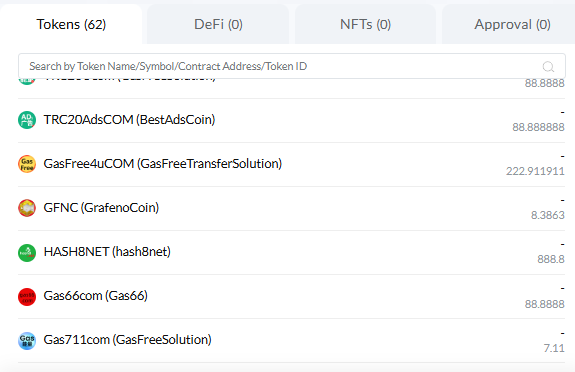
These tokens are often used for:
Advertising (token names may include websites like “.com”)
Promoting contact information or external links
Gambling or high-risk platforms
Phishing attempts to trick you into connecting your wallet or approving transactions
You may notice very large amounts (e.g., 888,888), but this is only to attract attention. In most cases, these tokens have no real value and cannot be safely traded or sold.
These tokens only exist as records on the blockchain. They do not automatically deduct your USDT or control your wallet.
The correct approach is to ignore them and treat them as spam.
Important: Do not click on any websites or contact information shown in these tokens, as they may lead to scams or potential loss of funds.
FAQ
What Is the Difference Between Tronscan.org and Tronscan.io?
These two websites differ only in their domain names and offer the same functionality. Users can use either one to check USDT (TRC20) transactions and address data on the TRON blockchain.Both domains are provided and maintained by Tronscan. In practice, tronscan.org is more widely used and more commonly referenced in official channels.
Why is my USDT balance on Tronscan different from my wallet?
The balance shown on Tronscan is usually higher than the USDT balance in your wallet.This is because the “asset value” on Tronscan represents the total value of all tokens in the address, including:USDT\TRX\Other tokens. However, most wallets only show the USDT balance. To check the correct USDT amount, go to the Token list and find USDT (Tether USD).This value is the same as what you see in your wallet.
Why can’t I see my USDT transfers in the Transactions tab on Tronscan?
USDT (TRC20) transfers do not appear under the “Transactions” tab on Tronscan, because this tab mainly shows TRX transfers.To view USDT transfer details, you need to click the “Transfers” tab next to “Transactions”.