
Hoe een Chinese satelliet Iran hielp om Amerikaanse bases in kaart te brengen
Tronscan is a TRON blockchain explorer that allows users to view on-chain data such as transactions, wallet addresses, network activity, and token analysis.
A common use of Tronscan is to check USDT TRC20 wallet addresses, look up transactions, and verify transfer statuses.
What’s tronscan?
TRONSCAN is the official blockchain explorer of the TRON network. Launched in 2018, it provides real-time, free on-chain query tools for users. It allows you to view transactions, blocks, accounts, and smart contracts on the TRON network.
It is widely used to check whether USDT TRC20 transactions are successful. Users can look up transaction status, verify transfers, and see details such as sender, receiver, amount, and confirmation time.
In addition, TRONSCAN supports wallet access, staking, and voting, and offers developer tools, making it an important gateway to the TRON ecosystem.
How to Use Tronscan
How to Check a USDT trc20 Address and Transaction on Tronscan?
You can copy a USDT TRC20 address into Tronscan to instantly view its balance and transactions. This is especially useful if someone sends you USDT TRC20 but you don’t have access to your wallet at the moment, or if you want to check the balance of a specific wallet address.
In the following steps, we’ll use a Binance wallet address as an example to show how to check its USDT TRC20 balance and transaction history.
Step 1: Go to Tronscan
Visit the official website: https://tronscan.org (Backup: https://tronscan.io)
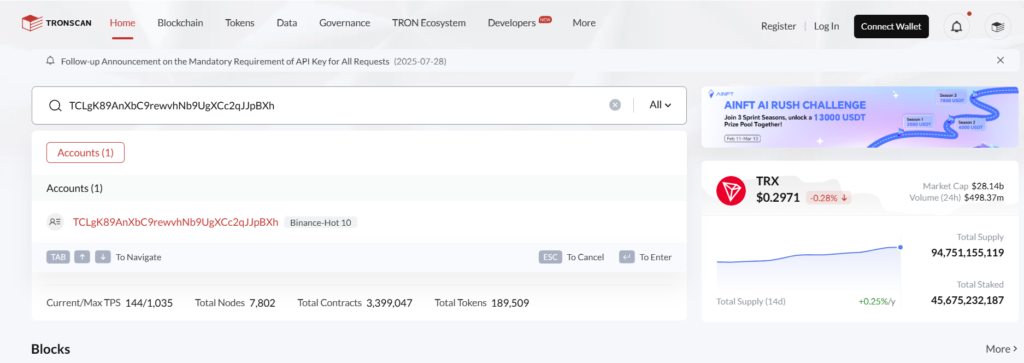
Step 2: Enter a USDT TRC20 Wallet Address
Paste the USDT TRC20 wallet address into the search bar. TRC20 USDT addresses typically start with “T”.
Example:Binance usdt trc20 wallet address TCLgK89AnXbC9rewvhNb9UgXCc2qJJpBXh
Step 3: View the Results
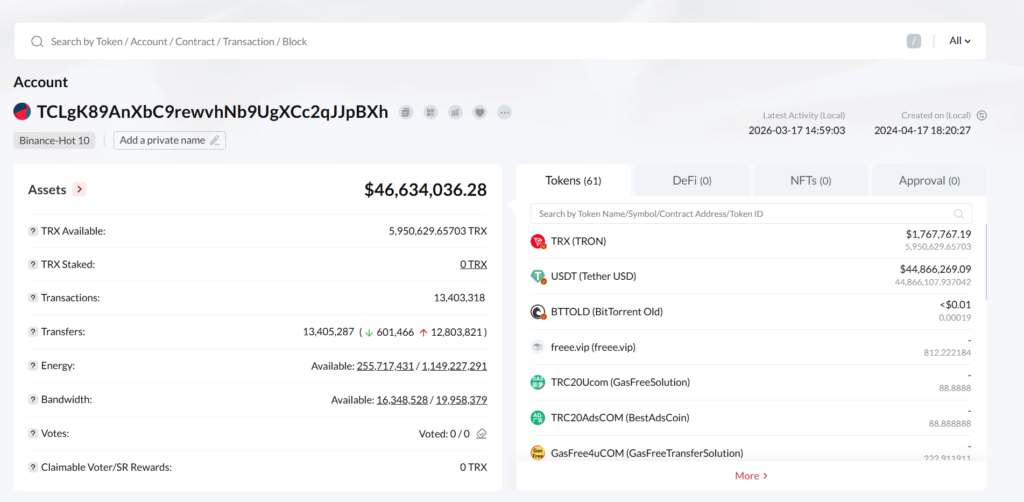
You will see the USDT TRC20 balance and transaction history for that address.
Check USDT Balance
You can check your USDT balance in the token list at the top right.
In the token list, USDT (Tether USD) represents USDT TRC20 on the TRON network.
The balance shows two numbers:
The top number is the estimated USD value of your USDT.
The bottom number is the actual amount of USDT held in the address.
Lookup USDT Transactions
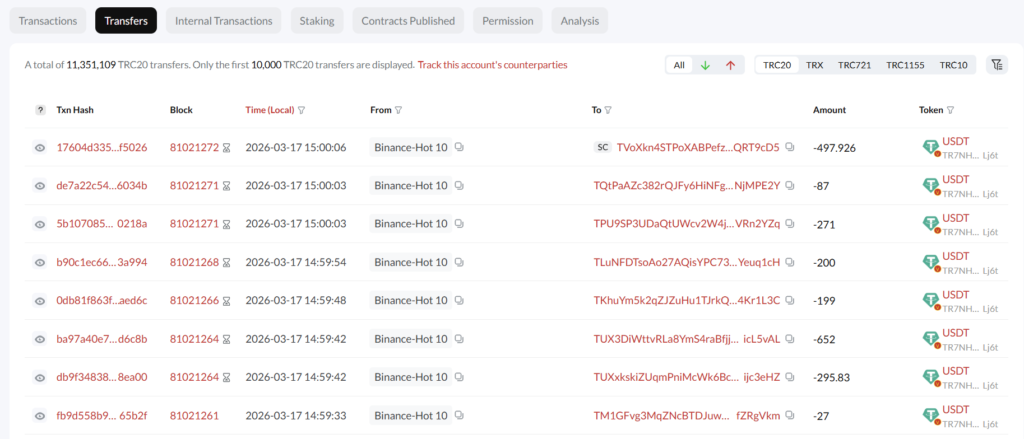
Click Transfer at the bottom, then select TRC20 on the right.
You will see the USDT TRC20 transaction history for the address. Transactions are listed in reverse chronological order, with the most recent transaction shown first. including:
- Transaction Hash (TxID)
- Transfer Time
- Sender Address
- Receiver Address
- Amount
You can also filter transactions by time or by address to find specific transfers.
How to Check USDT TRC20 Transaction Status by TxID (Transaction Hash)?
If you want to know whether a USDT TRC20 transfer has been received, or find out why a transaction failed, you can check the transaction status using the Hash on TRONSCAN.
Step 1: Enter the Transaction Hash (TxID)
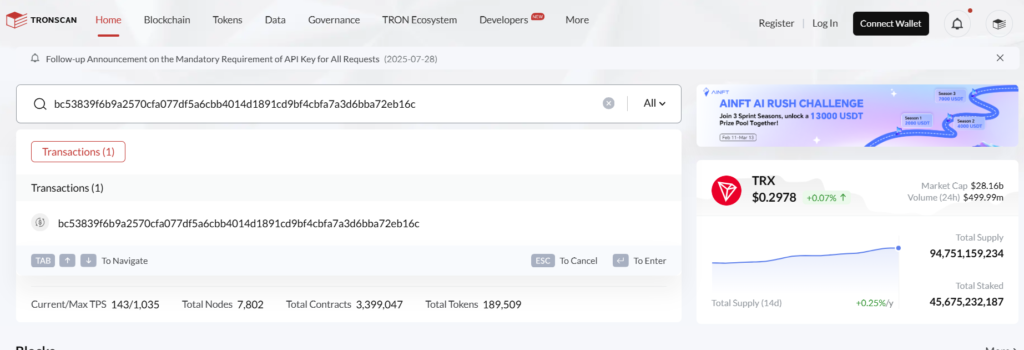
Paste the USDT TRC20 transaction hash (TxID) into the search bar on Tronscan.
A transaction hash (TxID) is a unique 64-character string made up of letters and numbers.
Example:
bc53839f6b9a2570cfa077df5a6cbb4014d1891cd9bf4cbfa7a3d6bba72eb16c
Step 2: Check the Usdt Trc20 Transaction Status
After entering the TxID, you will see the transaction details page.
USDT transfer completed:
Result shows SUCCESS and Status shows CONFIRMED
USDT transfer not completed:
Result shows FAILED and Status shows CONFIRMED
The most common reason is Out of Energy. When a transaction fails, you don’t need to worry. The USDT usually remains in the sender’s wallet and is not lost.You can fix this by sending some TRX to the address or renting TRON energy, then try the transaction again.

View Network Statistics
On the TronScan homepage, you can view real-time data such as TRX price, total accounts, transaction volume, and TRON-based USDT. These metrics provide a snapshot of overall network activity and blockchain health. If the homepage overview isn’t enough, use the navigation menu to explore deeper insights, including blocks, nodes, energy rental, and the broader TRON ecosystem.
- TRX Price & Market Info.Shows the current TRX price, market cap, and trading volume.Since 2018, TRX price has increased over 20×, indicating strong long-term growth.
- Total Transactions. The total number of transactions processed on TRON.As of April 2026, TRON has handled over 13.5 billion transactions, showing high network activity.
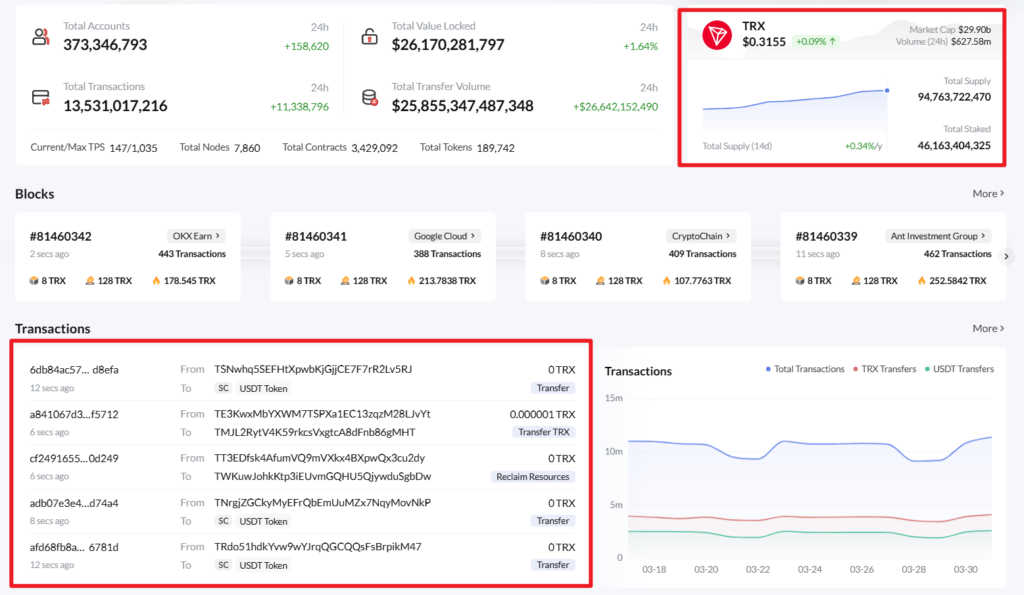
- Top 5 Tokens by Transfer Volume. Displays the most actively transferred tokens on TRON.USDT (TRC20), TRX, and USDD are the top tokens by transfer volume.
- TRX Staked.Indicates how much TRX is currently staked.Currently, about 46.16 billion TRX is staked, with 60.56% in Stake 2.0 and 39.44% in Stake 1.0.
- TRON USDT Section. Provides data on USDT supply, transfers, and holders on TRON.otal USDT TRC20 supply exceeds 86 billion, making TRON one of the largest USDT networks by supply.
How to Participate in TRON Governance?
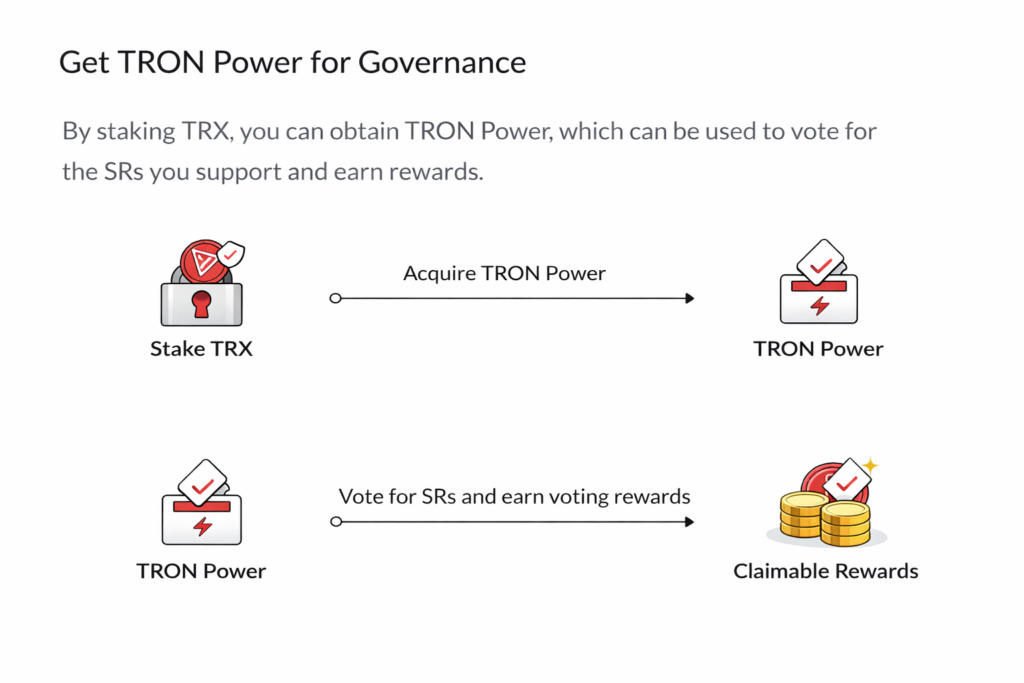
You can stake TRX to obtain TRON Power, which can be used to vote for the Super Representatives (SRs) you choose to support and earn rewards. Below is the step-by-step process to get started. Note: The minimum staking amount is 1 TRX, and unstaking takes 14 days.
Step1: Staking TRX for Tron Power
- Go to Governance > TRX Staking (2.0) to lock your TRX tokens.
- Choose Energy or Bandwidth to get Tron Power at a 1:1 ratio.
Step 2: Voting for Super Representatives
- In the Votes section, select a Super Representative (SR) candidate.
- Click Vote, allocate your Tron Power, and select Confirm to Vote to sign.
Step3: Claiming Voting Rewards
- Check Votes or Asset Management to see your accumulated rewards.
- Click Claim to transfer earned TRX directly into your wallet balance.
How to Get TRON Energy for USDT TRC20 Transfers on Tronscan
When sending USDT (TRC20), you may see errors like “Insufficient Tron (TRX) – Tron balance for gas fee” or “out of energy.” In this case, you can stake TRX on Tronscan to obtain Energy or Bandwidth, which can help complete the transfer and reduce fees.
- Connect your wallet. Open Tronscan and connect your wallet.
- Go to Resources > Stake 2.0. On the left menu, click Resources, then open Stake 2.0. This is the page where you manage Energy and Bandwidth.
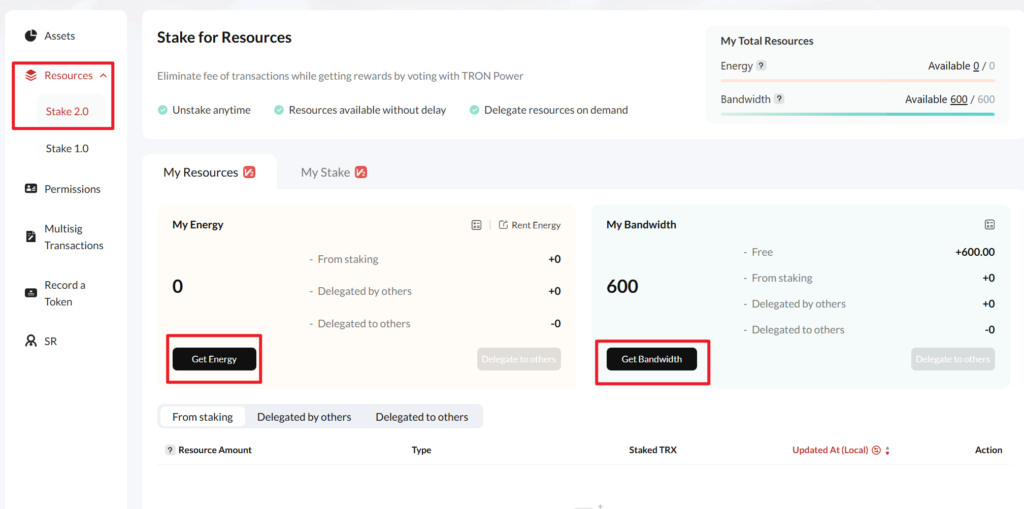
- Check My Resources. In My Resources, you can see your current Energy and Bandwidth. Energy: mainly used for TRC20 transactions like USDT transfers. Bandwidth: mainly used for regular on-chain transactions
- Stake TRX to get resources. Click Get Energy or Get Bandwidth in My Resources, enter the amount of TRX to stake, and confirm the transaction in your wallet. Once confirmed, the selected resource will be added to your account.
How to Distinguish a USDT TRC20 Smart Contract from a Wallet Address on Tronscan?
Many users cannot tell the difference between a contract address and a wallet address when making a transfer, which can lead to the loss of USDT TRC20 tokens. By checking the labels and page layout on Tronscan, you can quickly identify the address type and make your transaction safer.
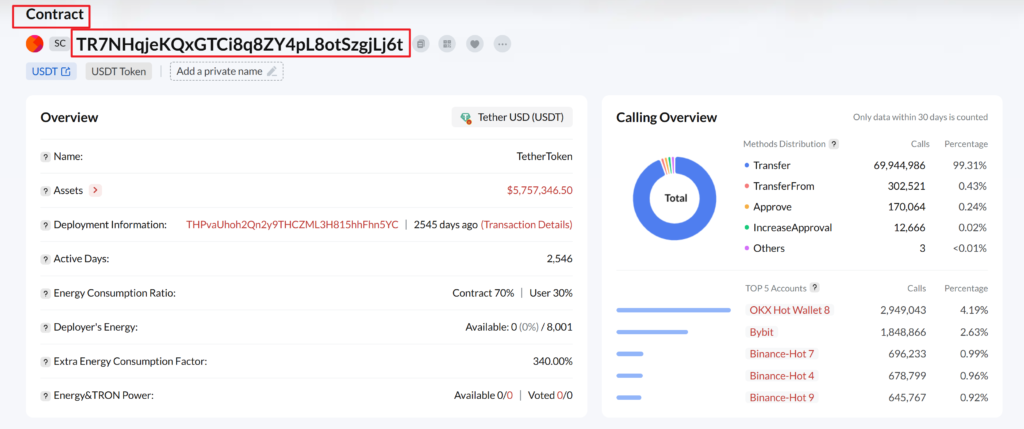
- USDT TRC20 Smart Contract Address. The USDT TRC20 contract address is TR7NHqjeKQxGTCi8q8ZY4pL8otSzgjLj6t. After you enter this address in the search bar, Tronscan will clearly show the “Contract” label in the top-left corner of the page. In the Overview section, you will see the name “TetherToken” and contract deployment information, rather than personal asset holdings.
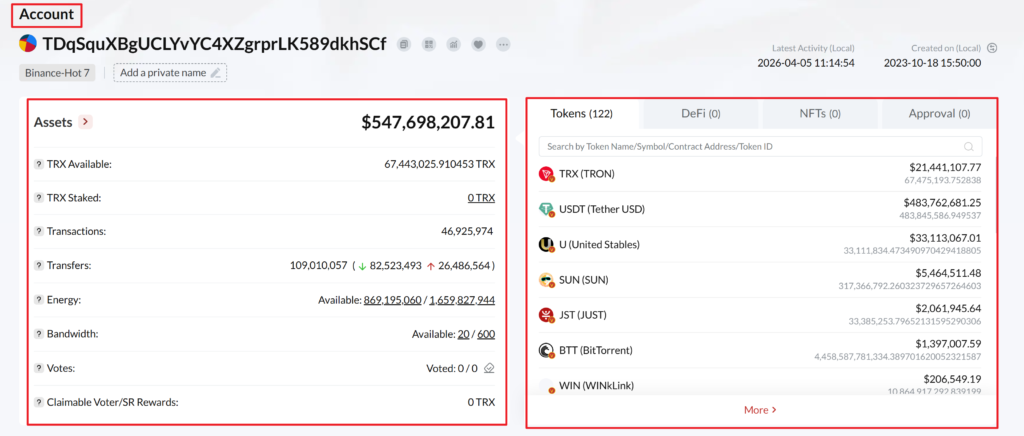
- Personal or Exchange Wallet Address. For a personal wallet or exchange wallet, the page will show the “Account” label in the top-left corner. The main part of the page will display the address’s TRX balance, energy, and bandwidth, while the right side will show a detailed Tokens list of the assets held in that wallet.
- Safety Tips. Never send USDT Trc20 directly to a contract address TR7NHqjeKQxGTCi8q8ZY4pL8otSzgjLj6t, because this may cause your tokens to be lost permanently. Before sending, always make sure you are using the correct wallet address, not a smart contract address.
What Can You Do with TRONSCAN?
TRONSCAN helps users explore and verify on-chain activity across the TRON network. Whether you want to check a USDT TRC20 transaction, analyze a wallet, use APIs as a developer, or explore the TRON ecosystem including wallets and DeFi, it provides clear data and secure access in one place.
Transaction Tracking
TRONSCAN allows users to track TRX, USDT TRC20, and other TRC tokens in real time. You can search by TxID (hash) to check transaction status (success, pending, or failed) and verify transfers. It also shows key details like sender, receiver, amount, block, and confirmation time.
Wallet / Address Analysis
You can enter any TRON wallet address to view its full details,
check balances, explore transaction history, and track TRX, USDT TRC20, and other TRC tokens, and see token types, amounts, and related assets like NFTs.
Analyze Smart Contracts
You can enter a contract address to view and analyze smart contracts on the TRON network, check contract code, transactions, and interactions, and verify how contracts work and interact with users, tokens, and DApps.
Token Analysis
Frequently asked questions
What Is the Difference Between Tronscan.org and Tronscan.io?
These two websites differ only in their domain names and offer the same functionality. Users can use either one to check USDT (TRC20) transactions and address data on the TRON blockchain.Both domains are provided and maintained by Tronscan. In practice, tronscan.org is more widely used and more commonly referenced in official channels.
Why is my USDT balance on Tronscan different from my wallet?
The balance shown on Tronscan is usually higher than the USDT balance in your wallet.This is because the “asset value” on Tronscan represents the total value of all tokens in the address, including:USDT\TRX\Other tokens. However, most wallets only show the USDT balance. To check the correct USDT amount, go to the Token list and find USDT (Tether USD).This value is the same as what you see in your wallet.
Why can’t I see my USDT transfers in the Transactions tab on Tronscan?
USDT (TRC20) transfers do not appear under the “Transactions” tab on Tronscan, because this tab mainly shows TRX transfers.To view USDT transfer details, you need to click the “Transfers” tab next to “Transactions”.
Why Are There Other Tokens in My USDT TRC20 Address? Are They Safe?
Unknown tokens in your USDT TRC20 address are usually airdrop tokens sent by others. On the TRON network, anyone can send tokens to your address as long as they know it — no permission or action is required from you. These tokens are just records on the blockchain. The safest approach is to treat them as spam—do not click any links or interact with them.
Can I use Tronscan to check USDT ERC20 or USDT BEP20?
No, Tronscan only works on the TRON network. It helps you check USDT (TRC20) and other TRON-based tokens, including transactions, wallet addresses, and on-chain data. If your USDT is on ERC20 or BEP20, you need to use other blockchain explorers like Etherscan or BscScan to check your transaction or wallet.
Is Tronscan safe to use?
Yes, Tronscan is the official blockchain explorer for the TRON network. You don’t need to connect your wallet to use its search features. You can simply paste a wallet address into the search bar to check USDT (TRC20), TRX, and other token transaction history and balances.
Can I cancel or reverse a transaction on Tronscan?
No. Transactions on the TRON blockchain cannot be canceled or reversed once confirmed. Tronscan is a blockchain explorer, so it does not control transactions and cannot change them.So always double-check the address and amount before sending.